
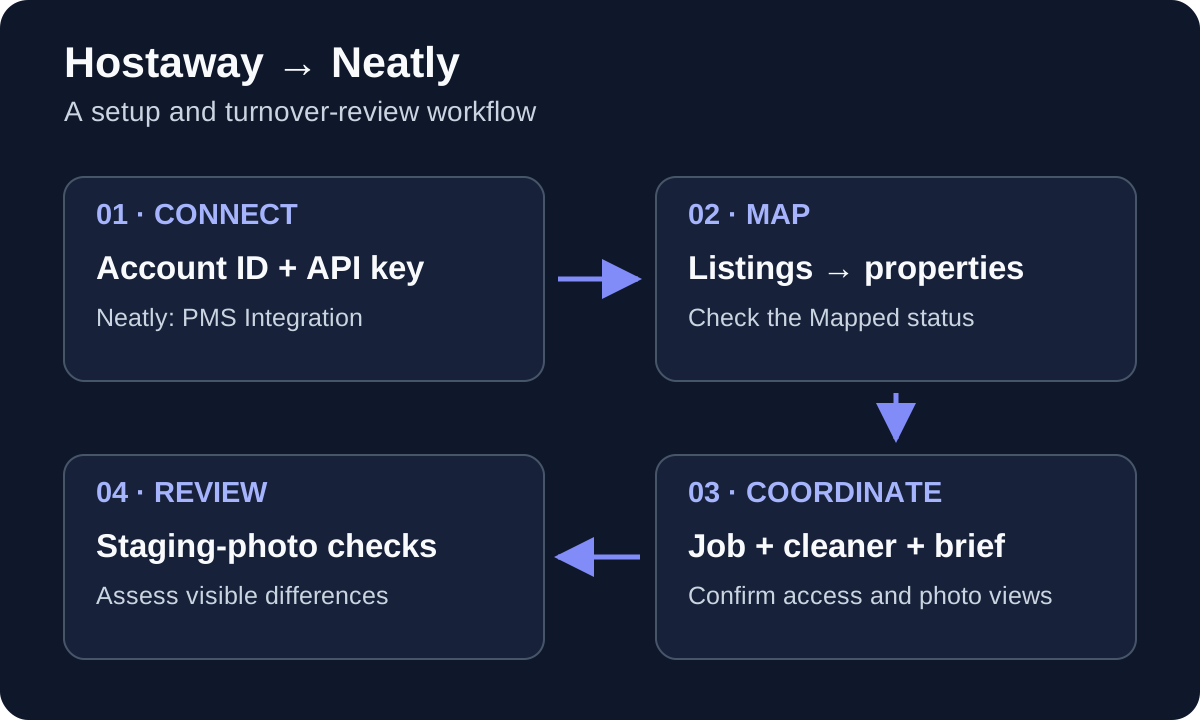
What Hostaway already automates—and where Neatly fits
Hostaway supports reservation-linked auto-tasks, assignees, supervisors, checklists and attachments. If those tools cover your process, establish your existing task rules before adding another system. The purpose of a Neatly connection is to bring your turnover jobs, cleaner instructions and AI staging-photo comparison into the workflow your team uses.
Choose one place to issue each cleaning assignment. You can keep the reservation in Hostaway while your team coordinates the clean in Neatly, but check that another automation is not sending a second cleaning instruction for the same service. Keep unrelated maintenance or inspection tasks separate from that decision.
New PMS reservations automatically create cleaning jobs in Neatly before checkout. When reservation details change, Neatly updates the related cleaning work by changing the job time or cancelling the job as appropriate. Reservation updates arrive through webhooks or polling depending on the PMS connection, so do not assume every update appears instantly.
1. Confirm access and choose the first listing
Have the Neatly account owner handle the connection and property creation. Delegated manager access may not expose those controls. You also need permission to create or access API credentials in Hostaway and at least one listing in that account.
Choose a representative listing and record its Hostaway listing ID, expected departure and arrival dates, cleaning instructions and assigned team. Use the listing ID as well as the name when checking the mapping: two properties can have similar names.
Neatly’s connection screen allows one PMS provider per account. If another provider is already connected, plan the transition with Neatly rather than disconnecting it as a troubleshooting step. Disconnecting can affect existing property and job records.
- Agree on who will maintain the connection and who will review sync errors.
- Choose an approved way to test booking changes without altering a real guest’s stay.
- List the cleaning automations already running for the pilot property and decide which will issue the assignment.
2. Generate the Hostaway API credentials
In Hostaway, open Settings → Hostaway API and choose Create. Hostaway’s current instructions require a name and partner selection. Choose the appropriate entry for the connection; its generic Hostaway Public API option is available for software outside the listed partners. Ask Neatly if you are unsure which entry to use.
Hostaway presents an Account ID and API Key. Save them securely when shown; Hostaway states that the key is displayed only once. In Neatly, the corresponding fields are labelled Account ID and Client Secret. Enter the API key in the Client Secret field.
Use the credentials only in the authorized connection form. Do not include the secret in a public screenshot, a shared checklist or a support message. A support investigation can start with the visible error and the affected listing or job reference.
3. Connect in Neatly and check the first sync
Open PMS Integration in the Neatly sidebar. Find Hostaway, select Connect Hostaway, enter the Account ID and Client Secret, then select Connect. Neatly starts a listings sync after the connection is saved.
Treat connection status and sync status as separate checks. A connection can be saved even if the first data pull fails. Review the Hostaway card’s status, any displayed error and the last-synced information. Sync Now retries the pull; read the result before repeating it.
After a successful pull, expand Listings. Check that the pilot listing appears and that its identity matches the property you intended to connect. Do not assume the whole portfolio is operational merely because the Hostaway card says Connected.
| What you see | What to check next |
|---|---|
| Connection error | Check the Account ID and secret locally; review the visible message. Do not post the secret in support. |
| Connected, first sync failed | Read the sync error, then use Sync Now when the cause is addressed. |
| Sync completed, listing missing | Check the Hostaway account, listing identity and the scope of the sync with support. |
| Listing present and Unmapped | Create or map the Neatly property before expecting that listing’s full turnover workflow. |
4. Turn the imported listing into a Neatly property
An imported listing and a Neatly property are distinct steps. An Unmapped listing has not yet been linked to a Neatly property. For the pilot, choose Create Property and review the details prefilled from the listing before saving.
Check the property name, location, instructions and cleaning price. The cleaning price is the payment amount for a job, not Neatly’s software subscription price. Confirm the amount with the responsible person before creating work for a cleaner. Review the checklist setup as part of the property workflow.
After saving, confirm that the listing is marked Mapped and points to the intended Neatly property. If it offers Restore property after an earlier disconnection, review that choice with your account owner so you preserve the intended property history instead of creating a duplicate.
Keep a small mapping register during rollout
For each pilot listing, record the Hostaway listing ID, Neatly property name or ID, responsible cleaner and first job checked. Mark the property ready for expansion only after the mapping, assignment and review steps pass. This can be a simple rollout checklist alongside your existing records.
5. Confirm the cleaner and the instructions they receive
Neatly can stage Hostaway account-user details for review. Importing details is separate from creating a cleaner’s Neatly account. Review the people and property assignments before choosing an account-creation action, which can create access and send an email.
Keep your existing cleaners if that is how your operation runs. Confirm that the intended cleaner can access the pilot job, open its property instructions and complete the checklist and requested photo views. Seeing a person in an imported-user list is not a substitute for confirming that they can receive and carry out the assignment.
Give the operations lead responsibility for unassigned work and cleaner changes. For same-day turnovers, include the available work window, any travel between properties and the person who will review the result.
6. Run the reservation-change checks before expanding
Use an approved test reservation or coordinate a controlled check with your onboarding contact. A new reservation should produce the related cleaning job; changed dates should be reflected in the work, and a cancellation should remove the need for that scheduled clean. Compare the reservation, job and cleaner view after the update has reached Neatly.
Use the matrix below to check the connection, mapping and team handoff together. If a result does not match the reservation, keep the pilot small and resolve the mismatch with support. Have the operations lead review any work already underway when a booking changes.
| Scenario | Check in Neatly | Acceptance record |
|---|---|---|
| Normal reservation | Cleaning job created for the new reservation, with the correct mapped property and service date | Reservation reference, property, job reference and observation time |
| Departure date changes | Cleaning job time updated to match the changed reservation; cleaner sees the current assignment | Old and new date, resulting job and cleaner confirmation |
| Reservation cancelled | Scheduled clean cancelled as appropriate; affected cleaner sees the current work | Reservation status, resulting job status and cleaner confirmation |
| Same-day booking or arrival | Job visibility, available work window and cleaner capacity | Who accepted the work and who will review it |
| Listing already imported | One intended property mapping and no duplicate cleaning instruction | Mapping IDs and the automation issuing the assignment |
Check native Hostaway auto-tasks separately
Hostaway documents a specific exception for its own auto-tasks: manually editing a task’s start or end time stops those times from following later reservation changes. Check any manually edited native tasks when investigating a scheduling mismatch. That rule describes Hostaway auto-tasks; verify Neatly’s job behavior through the connection checks above.
7. Add staging-photo review to the pilot turnover
Choose reference photos that show the expected staging for the pilot property. Have the cleaner capture the requested spots from the job, then review a reference and capture together. Neatly’s AI staging comparison flags visible differences for your team to assess.
Test the handoff as well as the image: who sees a flag, who asks for a correction or another view, and who decides the property is ready for arrival? Use a clear reference and capture, and practice an acceptable variation as well as a visible mismatch.
Photos help review visible staging and condition. They cannot establish linen replacement, sanitization, odors or hidden cleanliness. Keep those checks in your cleaning procedure and use physical inspections where needed.
Troubleshoot without rebuilding the connection
When a job does not match expectations, capture the property or listing reference, reservation reference, expected date, observed date, last sync and visible error. Include the time zone when dates or times are disputed. Keep guest details and credentials out of public screenshots.
Check the mapping and assignment before making another property or job. If work must be arranged manually to protect an arrival window, tell the affected cleaner which instruction is current and reconcile it against the automated record. Repeatedly disconnecting and reconnecting can complicate the investigation.
| Symptom | First check |
|---|---|
| Connected but no listing data | First-sync result and visible connection error |
| Listing visible but no job for a new reservation | Mapped property, latest sync result and the new reservation record |
| Job exists but cleaner cannot find it | Assigned person, property access and the cleaner’s current account |
| Two cleaning instructions | Multiple task automations, duplicate mappings or a manual fallback still active |
| Staging result looks wrong | Reference, camera view, lighting and whether the capture shows the requested spot |
Expand in groups after the pilot passes
Add properties in groups that your operations lead can review. For each group, confirm listing mappings, cleaning prices, instructions, cleaner access and a representative set of booking changes. Keep one person responsible for the unresolved setup list.
Use the first turnovers to check your time estimates and review capacity. The stopping point for expansion is an unresolved workflow gap, such as a missing assignment or an unclear cancellation process. Resolve that before making the same setup standard across the portfolio.
Your first Neatly property is free. Test the Hostaway workflow with your existing team, then check the current portfolio pricing for the active properties you plan to add.
Walk through your Hostaway turnover workflow
Bring your property count, cleaner setup and a booking-change example. We will help you check the connection and photo-review process for your team.
Book a Hostaway workflow demo·Explore photo verification