Start with the workflow you need
Guesty already supports reservation-driven auto-tasks, checklists, photo attachments and task management. If those tools cover the work your team needs to do, review that setup before adding another place for cleaners to check.
Neatly adds its own cleaning coordination and AI photo-review workflow. It compares staging captures with reference photos and reviews before-and-after images for visible cleaning issues and property damage. Decide where your team will receive the cleaning job, upload the requested photos and follow up on a finding.
If you keep tasks in both systems, make their purposes clear. A Guesty inspection task and a Neatly turnover job may serve different people; two instructions that both appear to assign the same clean can leave the team unsure which one to follow.
Check access before creating credentials
Neatly’s direct Guesty connection uses the Guesty Open API. Confirm that your Guesty account has Open API access and that the person setting it up can create an application. If the menu is missing, check access with your account administrator or Guesty before trying different credentials. Guesty documents a single admin scope for Open API credentials, so the account owner should approve that access before connecting.
Use the Neatly account owner’s login for the connection. The current Neatly connection screen permits one PMS connection per account. If another PMS is already connected, ask us to plan the move with you before changing that connection.
Choose a representative property for the first review. Have its Guesty listing, an upcoming reservation, cleaning instructions, reference photos and agreed cleaner rate available. Confirm which existing reservations should import during onboarding rather than assuming every historical booking will appear.
Create a Guesty Open API application
In Guesty, open Integrations, select OAuth applications and choose New application. Enter an application name and description, then save. A name such as “Neatly cleaning operations” helps you recognize its purpose later.
Copy the Client ID and Client Secret when Guesty displays them, and keep them in your approved secure storage. Guesty redacts these details after creation. Use credentials from the Guesty account containing the listings you intend to connect.
These must be Open API credentials. Guesty’s Booking Engine API credentials are a different set and cannot be substituted. You do not need to write API requests or generate an access token yourself to use Neatly’s connection form.
Connect Guesty and set up the imported properties
Connect from the account owner’s login
In Neatly, open PMS Integration and select Connect Guesty. Enter the Client ID and Client Secret, then select Connect. This route uses the credentials you created in Guesty; it is different from Hospitable’s authorization screen.
Neatly then attempts to sync the listings. If it reports that the connection succeeded but the first sync failed, read that message carefully: it does not automatically mean the credentials are wrong. Check the status and use the indicated sync action before starting the connection again.
Turn an imported listing into a usable property
Review the listings under the Guesty connection. A listing marked Unmapped has not yet been linked to a Neatly property. Use Create Property for a listing you are setting up for the first time. If you are reconnecting an account, check for an earlier property record before creating another. The screen also offers Select multiple for a batch; review the first property before repeating the setup.
Review the prefilled details, complete the required fields and check the cleaning rate. A guest-facing cleaning fee is not necessarily the amount you agreed to pay the cleaner. Add the property instructions and check the arrival and departure times your workflow should use.
Properties imported through the PMS connection receive their booking information through that route. The property form hides the separate calendar-feed fields for this flow; you do not also need to paste the same listing’s Vrbo calendar into it.
Decide which cleaners need accounts
The connection form offers “Also import my cleaners.” Its current description says this copies Guesty users into Team Members without creating logins or emailing them. Review the people and their property assignments before taking the separate step to create cleaner accounts.
Brief the team on where to find the job instructions and which photos to capture. An imported name is not a substitute for walking someone through the property’s cleaning and review process.
Check the booking-to-cleaning handoff
Compare known reservations and recent changes with the jobs in Neatly. For a controlled onboarding check, agree on a suitable example with the team; there is no need to alter a real guest’s dates just to exercise the connection.
Neatly creates cleaning jobs when supported reservations sync, before checkout, and changes or cancels the related work when reservations change. Verify that behavior on the properties you have mapped. A connected account alone does not establish that every listing is mapped or every exception has been resolved.
| Look at | Check in Neatly | If it does not match |
|---|---|---|
| An upcoming reservation | The job belongs to the correct property and reflects the expected turnover timing before the guest checks out. | Compare the listing-to-property link, the reservation and the most recent sync status. |
| A reservation whose dates changed | The related cleaning work reflects the revised timing. | Record the booking, old and new dates, affected job and last sync time for support. |
| A cancelled reservation | The related cleaning work has been cancelled or otherwise updated as appropriate. | Check for a separate manually created job or another source before deleting anything. |
| A listing still marked Unmapped | The listing has been deliberately linked to a Neatly property before its jobs are relied on. | Complete or review the property setup with the account owner. |
| The same clean appearing in two workflows | The team knows which job is assigned to them and which records serve another purpose. | Review the sources and ownership rather than asking the cleaner to choose. |
Give the photo review a clear owner
Once the scheduling handoff works, agree which views the cleaner should capture and who will review them. Use current reference photos for staging. For a visible concern, a closer view may be more useful than another wide room shot.
Neatly’s AI staging and before-and-after photo review can help identify visible cleaning issues, staging differences and property damage. Your reviewer decides whether the finding needs a correction, another photo or an on-site check, and confirms who will follow up before arrival.
A photo cannot establish sanitization, odors, hidden conditions or responsibility for damage. A made-bed image also does not establish that the linen was replaced. Keep those checks in the cleaning process. Neatly also reviews workflow videos with AI and generates issue reports for your team to assess.
If the connection needs attention
Read the connection and sync status separately
Check the Guesty card’s connection message and Last synced time, then compare the affected reservation with its Neatly job. “Connected” describes the account connection; it does not by itself answer whether a particular change has reached the job.
If “Live updates are off” appears, read the message and check when the account last synced. Booking changes may be arriving through periodic sync instead. Compare the affected reservation with its job and ask for help if it remains out of date. Review the problem before disconnecting the account or starting the setup again.
Check the token allowance before retrying
Guesty limits a Client ID to five new access-token requests in 24 hours, and its documentation says failed attempts also consume that allowance. This is an integration-token limit, not a limit on ordinary Guesty dashboard logins.
If Neatly shows a daily allowance warning, repeatedly saving credentials can make the problem harder to resolve. Use the reset information and the specific error message. When contacting support, send the affected listing or job reference and the message you see; keep the Client Secret out of email and screenshots.
Bring one property to a walkthrough
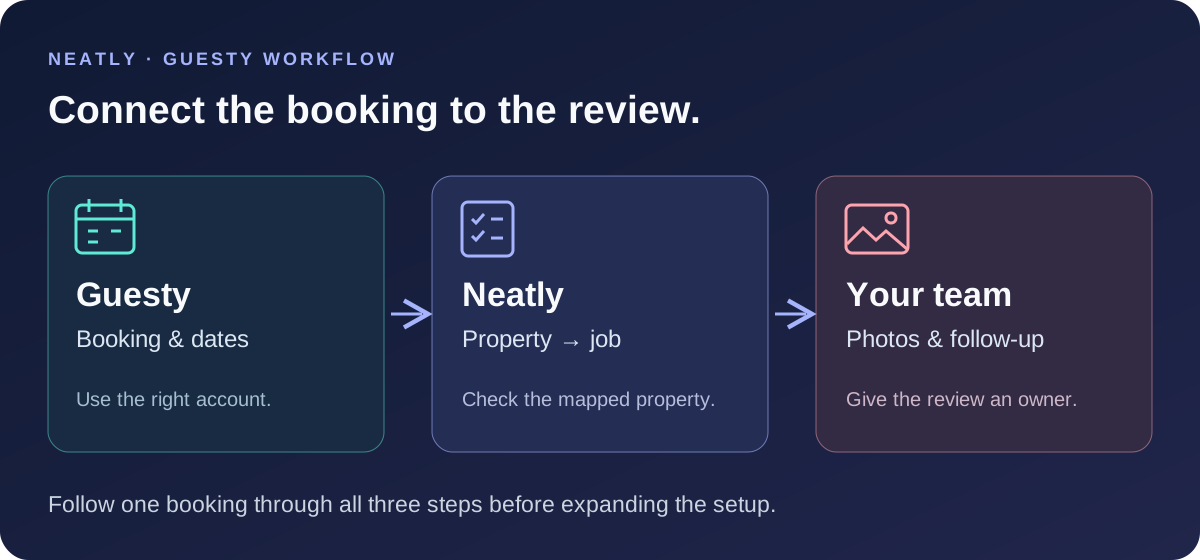
Before expanding the setup, follow one property from its Guesty booking to the Neatly job, the cleaner’s instructions and the completed photo review. Ask about initial import coverage, unusual reservation changes and any manually created work your team already has.
Bring those examples to a demo. They give us something concrete to check together and help your team decide where Neatly fits. Guesty’s setup documentation was checked on November 10, 2026.
Walk through a Guesty turnover in Neatly
Bring one listing, a booking and your cleaner’s checklist. We can review the connection, property setup and photo handoff, including any exceptions your team needs to handle.
Book a Guesty workflow demo·Explore photo verification